Step-by-Step Tutorial

How to Create Amazon Ads Using Bulk Upload — Step-by-Step Tutorial

I've walked dozens of sellers through their first bulk upload. The process itself is straightforward — but there are a few gotchas that trip people up every time. This tutorial covers the complete workflow with real screenshots and the mistakes I see most often.

Also available in: 中文版

William
William
6 min read·Published: April 3, 2026
Share:
Skip manual template editing next time.Build Your First Bulk Sheet →

What is bulk upload and why use it

Amazon Ads Bulk Operations lets you create or modify large numbers of campaigns, ad groups, and keywords by uploading an Excel file — instead of setting up each campaign manually.

Bulk upload is especially useful when you need to:

  • Launch multiple new product campaigns at the same time
  • Adjust bids or budgets across many campaigns at once
  • Copy the same campaign structure to different SKUs
  • Pause or enable campaigns in bulk

If you're still creating campaigns one by one, bulk upload can reduce hours of work to minutes.

1

Go to Bulk Operations

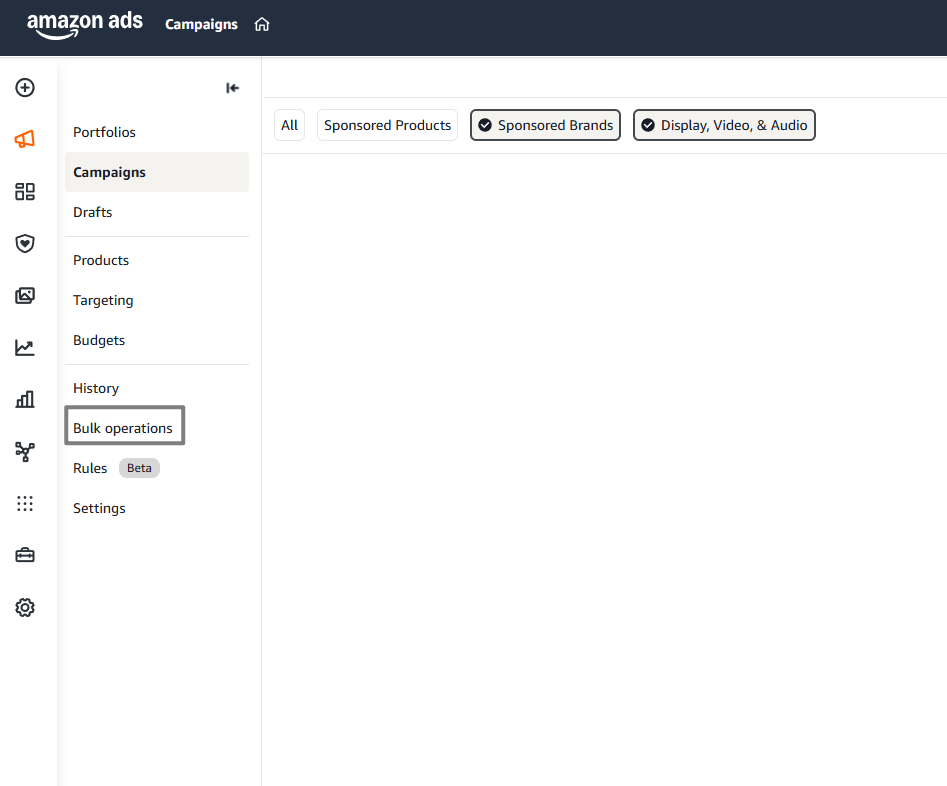
Log in to Amazon Ads console and find Bulk operations in the left navigation under Campaign Manager.

Amazon Ads left navigation — Bulk operations entry
Amazon Ads left navigation → Bulk operations
2

Download the spreadsheet

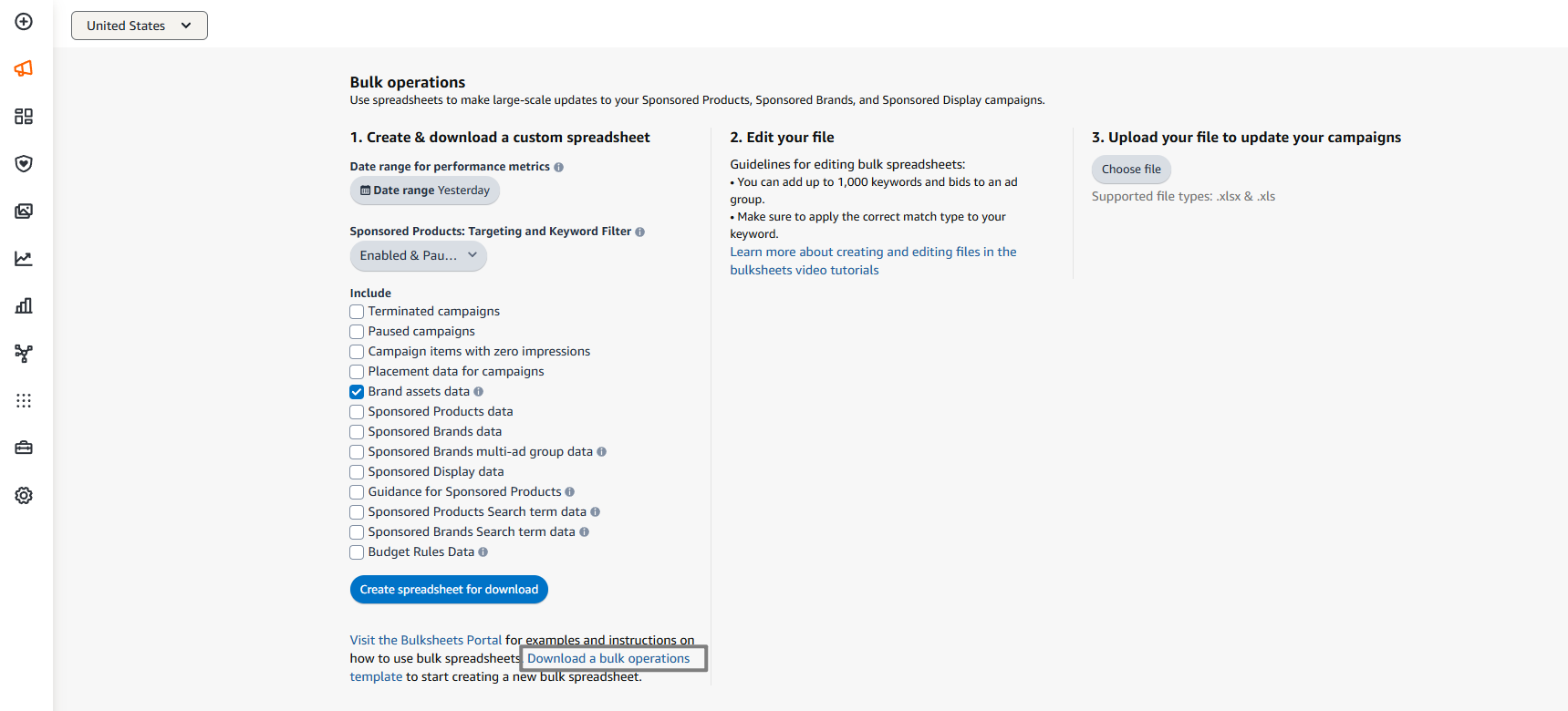
In the "1. Create & download a custom spreadsheet" section:

  1. Set a date range (Yesterday recommended)
  2. Check "Sponsored Products data"
  3. For Portfolio IDs, also check "Brand assets data"
  4. Click "Create spreadsheet for download"
Download Amazon bulk operations spreadsheet
Check Sponsored Products data, then click Create spreadsheet for download
Tip

Creating brand new campaigns? Click "Download a bulk operations template" at the bottom of the page to get a blank template instead.

3

Edit the spreadsheet

Open the .xlsx file in Excel. Each row represents one entity. Key fields to fill in:

  • Entity: Campaign / Ad Group / Keyword / Product Ad
  • Operation: create for new, update for edits
  • State: enabled or paused
  • Match Type: Exact / Phrase / Broad
  • Daily Budget and Bid amounts
Amazon bulk sheet Excel column structure
The bulk sheet template columns — do not rename or delete any headers
Important

Column headers must match Amazon's exact format. Match Type must be exactly Exact, Phrase, or Broad (case-sensitive). Any formatting error will cause the upload to fail.

Want to skip the manual formatting? AMZTool generates a correctly structured file from a visual editor — no spreadsheet editing needed.

4

Upload the file

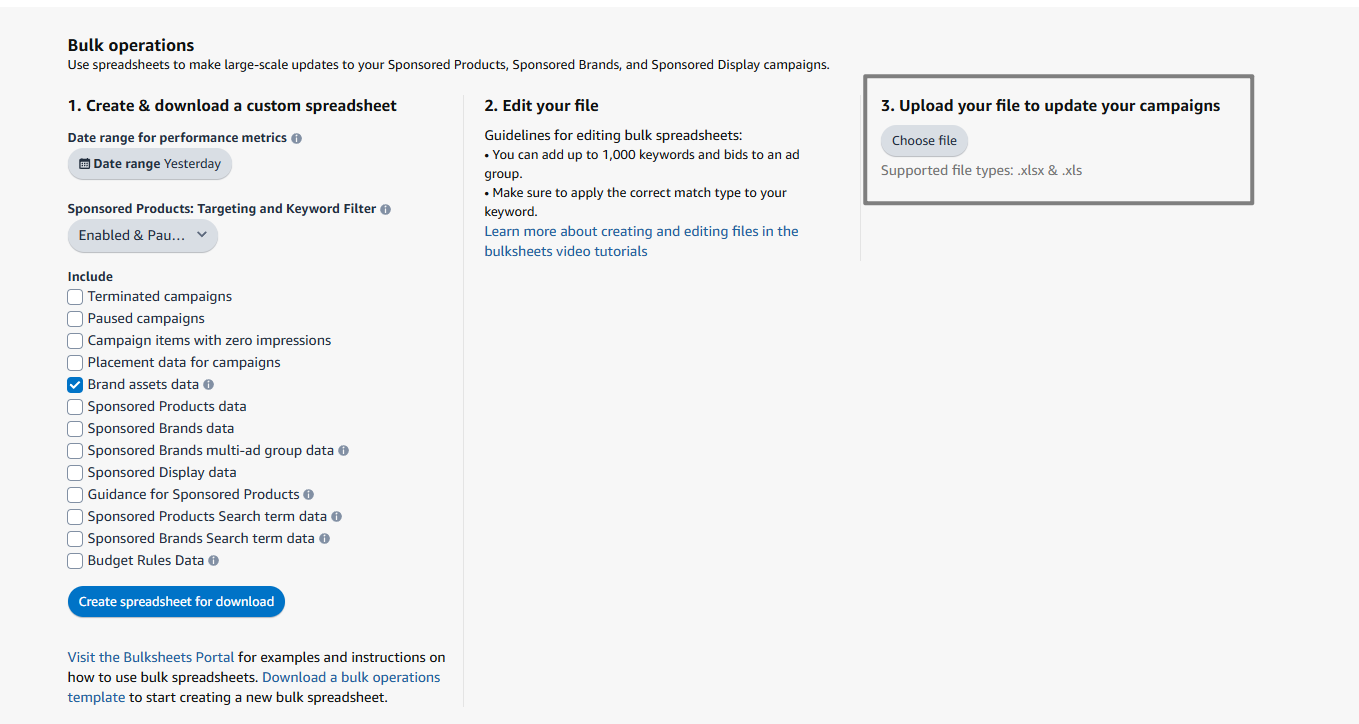
In the "3. Upload your file" section, click "Choose file", select your .xlsx file, and submit.

Upload Amazon bulk operations spreadsheet
Click Choose file, select your spreadsheet, and upload
Tip

Supported formats: .xlsx and .xls. A single upload can process up to 1,000 keywords.

5

Verify the result

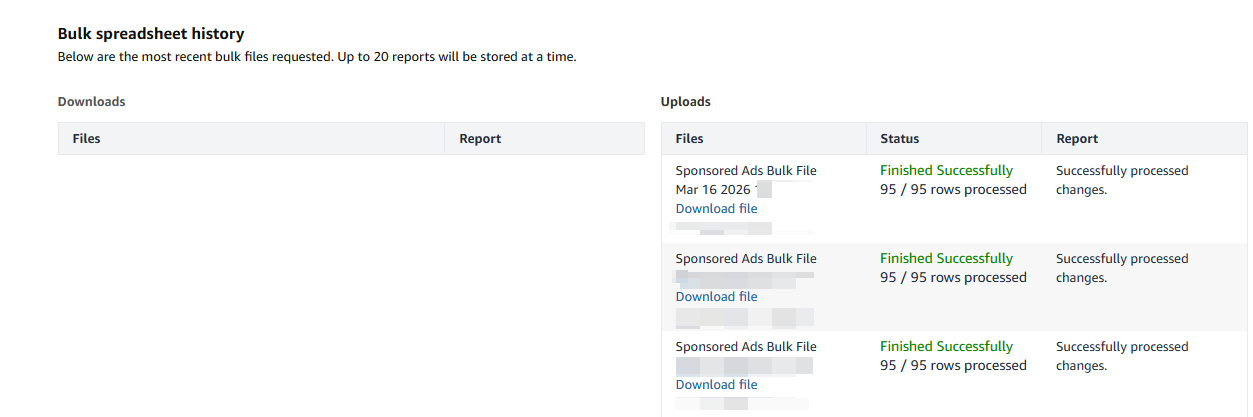
After ~3 minutes, check Bulk spreadsheet history:

  • Finished Successfully — campaigns created
  • Finished with errors — download the error report and fix the affected rows
Bulk spreadsheet history — Finished Successfully 95/95 rows
Finished Successfully — 95/95 rows processed
Campaign data not showing yet?

Wait 10 minutes after a successful upload before checking the console. The campaigns are live — the display just takes time to update.


Frequently asked questions

How do I create campaigns inside an existing Portfolio?
Check Brand assets data when downloading. Find the Portfolio ID in the report and enter it in the Portfolio Id column of your Campaign row before uploading. See our detailed Portfolio ID guide for step-by-step instructions.
How long does Amazon take to process a bulk upload?
Usually around 3 minutes. Check Bulk spreadsheet history for the result. If it fails, download the error report to fix the affected rows and re-upload.
Why isn't my campaign data showing after a successful upload?
Campaign data takes time to appear in the console. Wait at least 10 minutes and refresh. Finished Successfully means your campaigns are live.
I keep getting errors — how do I fix them?
The most common issues are wrong Match Type casing (must be Exact/Phrase/Broad), mismatched Campaign/Ad Group names, and modified column headers. Use AMZTool to generate a correctly structured file and avoid these errors entirely.
What ad types does bulk upload support?
Amazon bulk operations supports Sponsored Products, Sponsored Brands, and Sponsored Display. AMZTool focuses on Sponsored Products bulk sheet generation.

Related reads:

Build your next bulk sheet without template errors

AMZTool lets you create Sponsored Products campaign structures visually, reuse saved inputs, and export Amazon-ready files in minutes.

Build Your First Bulk SheetRead the Guide
William
William

Amazon PPC practitioner turned indie developer. I built AMZTool because I got tired of spending hours on repetitive campaign setup. When I'm not coding, I'm probably staring at ACOS numbers.

Published in:TutorialBulk UploadStep-by-Step
Share: